How to Publish on Social Media from Notion (Complete Guide 2026)
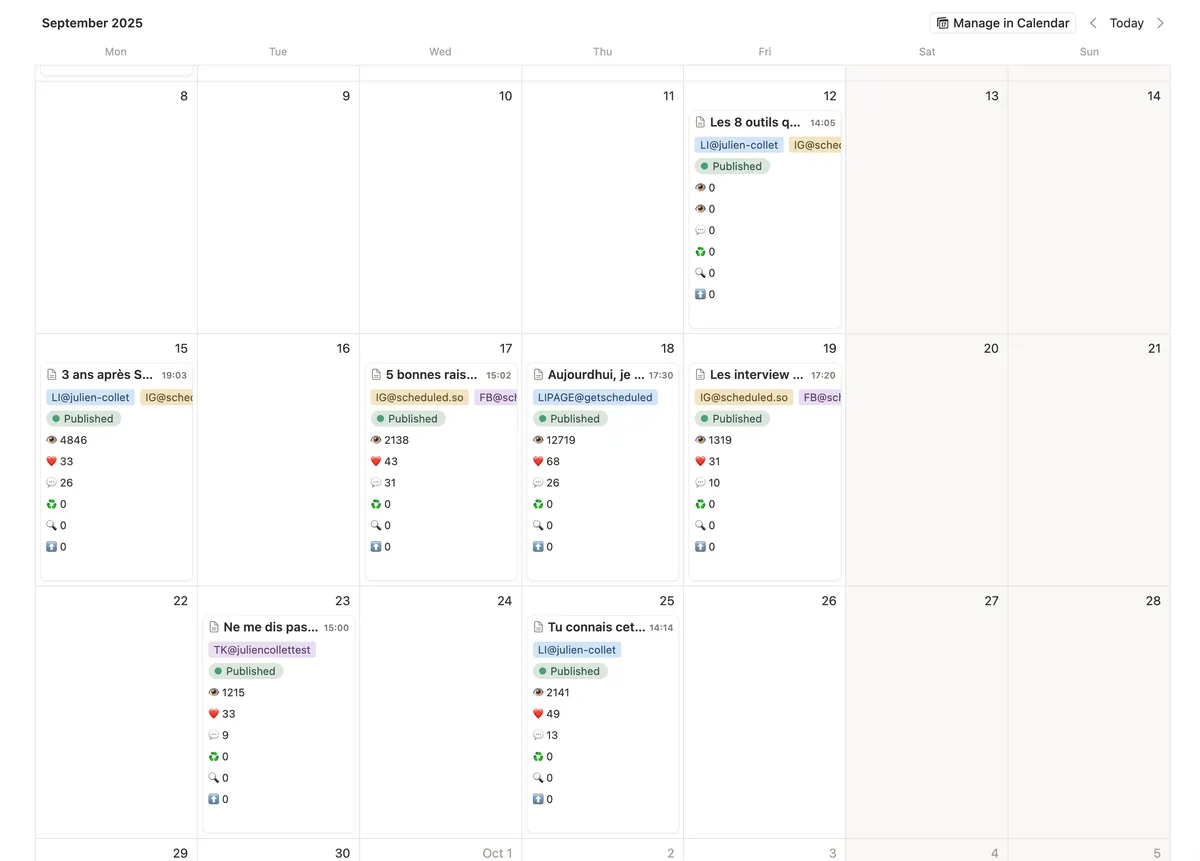
You already use Notion to organize your ideas, projects, and content. But every time you need to publish a post on LinkedIn, Instagram, or TikTok, it's the same routine: copy your text from Notion, open another tool, paste, reformat, add your images... and lose 15 minutes per post.
What if you could do everything from Notion? Schedule your posts, preview them, and publish automatically across all your social media platforms — without ever leaving your workspace.
That's exactly what this guide covers. We compare 3 methods for publishing on social media from Notion, from the simplest to the most powerful.
Why Publish from Notion?
Before diving into the “how,” let's address the “why.” There are dozens of scheduling tools like Buffer, Hootsuite, and Taplio out there. So why centralize everything in Notion?
Your Content Is Already in Notion
If you're like most content creators and community managers who use Notion, your editorial calendar, drafts, ideas, and research are already in your workspace. Publishing from another tool means duplicating your content, which creates inconsistencies and wastes time.
One Tool for the Entire Workflow
With Notion as your central hub, your workflow becomes linear: idea → draft → review → schedule → publish → analyze. No more juggling between 3 or 4 different tools. Everything happens in the same database.
Simplified Collaboration
If you work with a team — a ghostwriter, a proofreader, or a client — everyone can collaborate in Notion. Comments, mentions, statuses... everything is centralized. When the post is approved, it goes straight to social media.
Notion's Calendar Is Your Editorial Calendar
Notion's calendar view is perfect for visualizing your publishing schedule. You can see at a glance what's scheduled, what's still in draft, and where the gaps are. It's far more intuitive than a separate scheduling tool.
Need help setting up the perfect database? Our guide to building a Notion social media planner walks you through every property, view, and workflow step.
Method 1: The Manual Approach (Free, Limited)
The most basic method requires no additional tools. You use Notion as a writing and planning space, then manually copy-paste your posts to each platform.
How It Works
- Create a Notion database with properties: Title, Content, Platform, Publish Date, Status
- Write your posts directly in Notion pages
- When a post is ready, copy the text and paste it into LinkedIn, Instagram, etc.
- Mark the status as “Published”
Pros
This method is completely free and requires no technical setup. You keep full control over every publication, and your editorial calendar stays clean in Notion.
Cons
It's time-consuming: copy-pasting takes time, especially if you publish across multiple platforms. You lose formatting (bold, hashtags, mentions). There's no automatic scheduling — you have to publish manually at the right time. And you get zero performance analytics.
Verdict: Acceptable if you post 2-3 times a week on a single platform. Not enough once you increase your publishing frequency or expand to multiple networks.
Method 2: Automation via Make or Zapier (Technical, Flexible)
For those with a technical background, automation tools like Make (formerly Integromat) or Zapier can connect Notion to your social media accounts through “scenarios” or “zaps.”
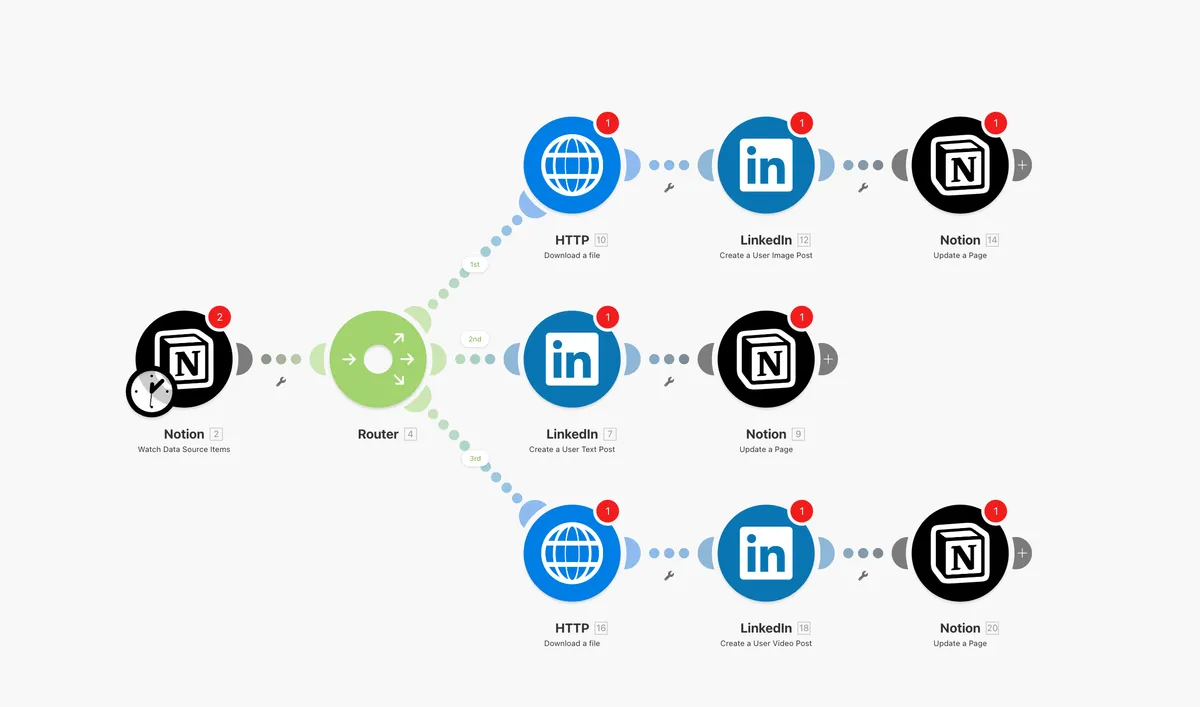
A typical Make.com scenario for publishing from Notion to LinkedIn
How It Works
- Create your Notion database with a “Ready to publish” status
- Set up a Make scenario or Zapier zap that monitors your database
- When a post switches to “Ready” status, the automation grabs the content and publishes it to the target platform
- The status is automatically updated in Notion
Typical Make Setup
A standard Make scenario consists of 3 modules:
- Module 1: Notion — “Watch Database Items” (triggered when status changes)
- Module 2: Router — directs to the right platform based on the “Platform” property
- Module 3: LinkedIn/Instagram/Twitter — “Create a Post” with the retrieved content
Pros
This method is highly flexible: you can create complex workflows with conditions, text reformatting, and publish to any platform supported by Make or Zapier. It's a solid option for technical users who want total control.
Cons
Initial setup is complex and requires automation knowledge. Free plans are limited (Make: 1,000 operations/month, Zapier: 100 tasks/month). Beyond that, expect to pay €10-30/month. Image and carousel handling is tricky. There's no post preview. And when something breaks (an API change, an expired token), debugging is tedious.
Estimated cost: Free for low volume, then €10-30/month for regular use.
Verdict: Good option for technical users with specific needs. But the maintenance and image limitations make this frustrating for daily use.
Method 3: A Dedicated Notion → Social Media Tool (Recommended)
The most efficient solution is to use a tool specifically designed to connect Notion to your social media accounts. These tools integrate directly into your Notion database and handle everything: scheduling, publishing, formatting, and even analytics.
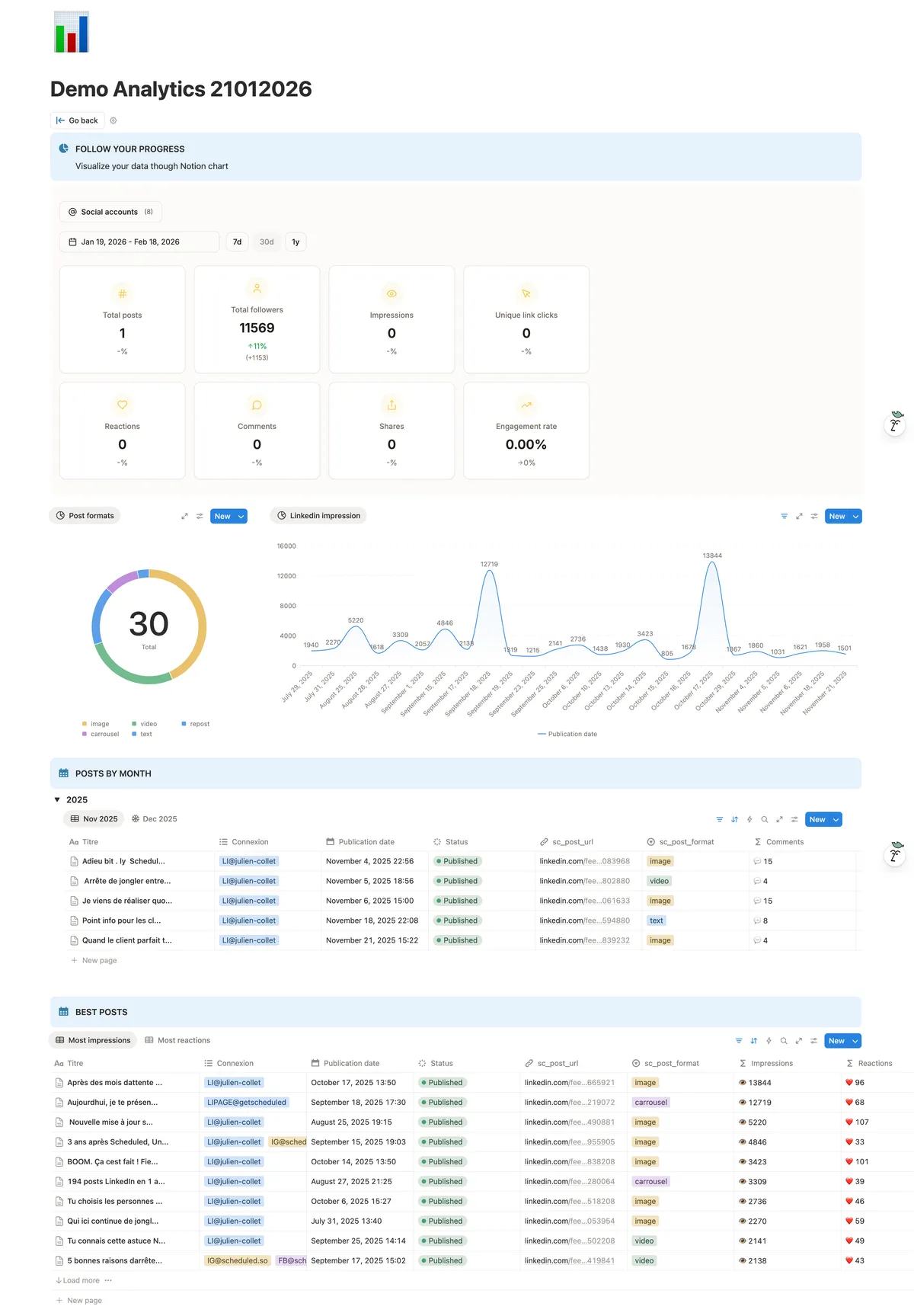
Scheduled dashboard: analytics and editorial calendar in Notion
Here are the 3 main tools available in 2026:
Scheduled (scheduled.so)
Scheduled is the most complete tool for publishing from Notion. Built by a French entrepreneur based in Reunion Island, it stands out for its advanced LinkedIn features and multilingual support.
Supported platforms: LinkedIn (profiles + pages), Instagram (feed, stories, reels, carousels), TikTok, YouTube, YouTube Shorts, Facebook, Twitter/X.
Key strengths:
- Formatting preserved: bold in Notion becomes bold on LinkedIn, hashtags are automatically converted
- Mentions and tags: you can @mention people and company pages on LinkedIn directly from Notion
- First comment scheduling: schedule the first comment on your posts to boost engagement
- Built-in LinkedIn analytics: track your stats and follower growth
- Ghostwriter mode: manage your clients' LinkedIn profiles from a single Notion workspace
- Agency mode: multi-client dashboard with reporting
- Free Notion templates included
- Post preview from Notion
Pricing: 14-day free trial, then from €9/month (Creator) up to €49/month (Agency). The Creator plan at €9/month works for most users.
NotionSocial (notionsocial.app)
NotionSocial is a freemium tool that covers a wide range of platforms. Built by an independent developer, it takes a simple plug-and-play approach.
Supported platforms: LinkedIn, Instagram, Facebook, Twitter/X, Pinterest, TikTok, YouTube.
Key strengths: Broad platform coverage (8 networks), Chrome extension for previewing posts in Notion, carousels on Instagram, LinkedIn, and Twitter, video and Instagram Reels support.
Limitations: No formatting preservation (bold, italic), no LinkedIn mentions, no built-in analytics, smaller user base.
NotionScheduler (notionscheduler.app)
NotionScheduler is the simplest and most affordable option. Ideal for beginners who just want to schedule a few posts per week.
Supported platforms: LinkedIn, Instagram, Facebook, Twitter/X, Threads, TikTok, YouTube.
Key strengths: Free plan with 2 accounts and 10 posts/month, very simple interface, competitive pricing (€10/month for Basic), Threads support.
Limitations: Basic features, no advanced formatting, no analytics, 10 posts/month on free plan (very limited), no ghostwriter or agency features.
Comparison Table
| Feature | Scheduled | NotionSocial | NotionScheduler |
|---|---|---|---|
| Platforms | 6+ | 9 | 7+ |
| Formatting preserved | Yes | — | — |
| LinkedIn mentions | Yes | — | — |
| Analytics | Yes | — | — |
| First comment | Yes | Yes | — |
| Ghostwriter mode | Yes | — | — |
| Free trial | 14 days | Free plan | 10 posts/mo |
| Starting at | €9/mo | Freemium | €10/mo |
How to Set Up Scheduled with Notion (Step-by-Step)
Here's how to get your publishing system running in under 5 minutes:
Step 1: Create Your Account
Head to scheduled.so and create a free account. No credit card required.
Step 2: Connect Your Notion Workspace
Scheduled will ask for access to a page in your Notion workspace. Accept the connection — the tool will automatically create an optimized database for publishing, or you can use your existing one.
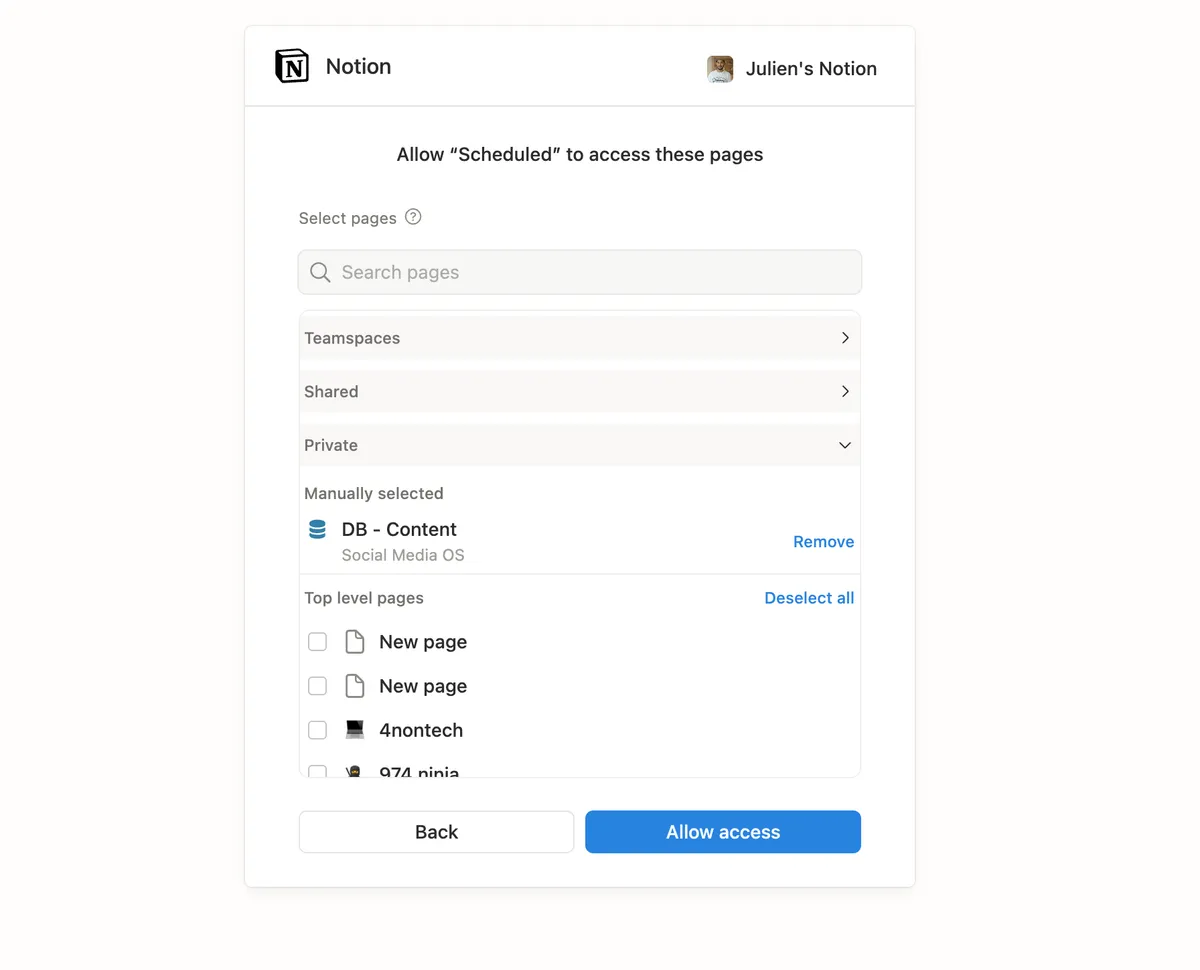
Notion OAuth authorization — secure and one-click
Step 3: Connect Your Social Media Accounts
Add your LinkedIn, Instagram, TikTok, YouTube, Facebook, or Twitter/X accounts. Each connection takes a few seconds via each platform's official authentication.
Step 4: Write Your First Post
In your Notion database, create a new page. Write your content using regular Notion formatting: bold, italic, hashtags, mentions. Add your images or videos as attachments.
Step 5: Schedule and Publish
Select the platform, set the date and time, and change the status to “Scheduled.” Scheduled takes care of the rest: your post will be published automatically at the scheduled time.
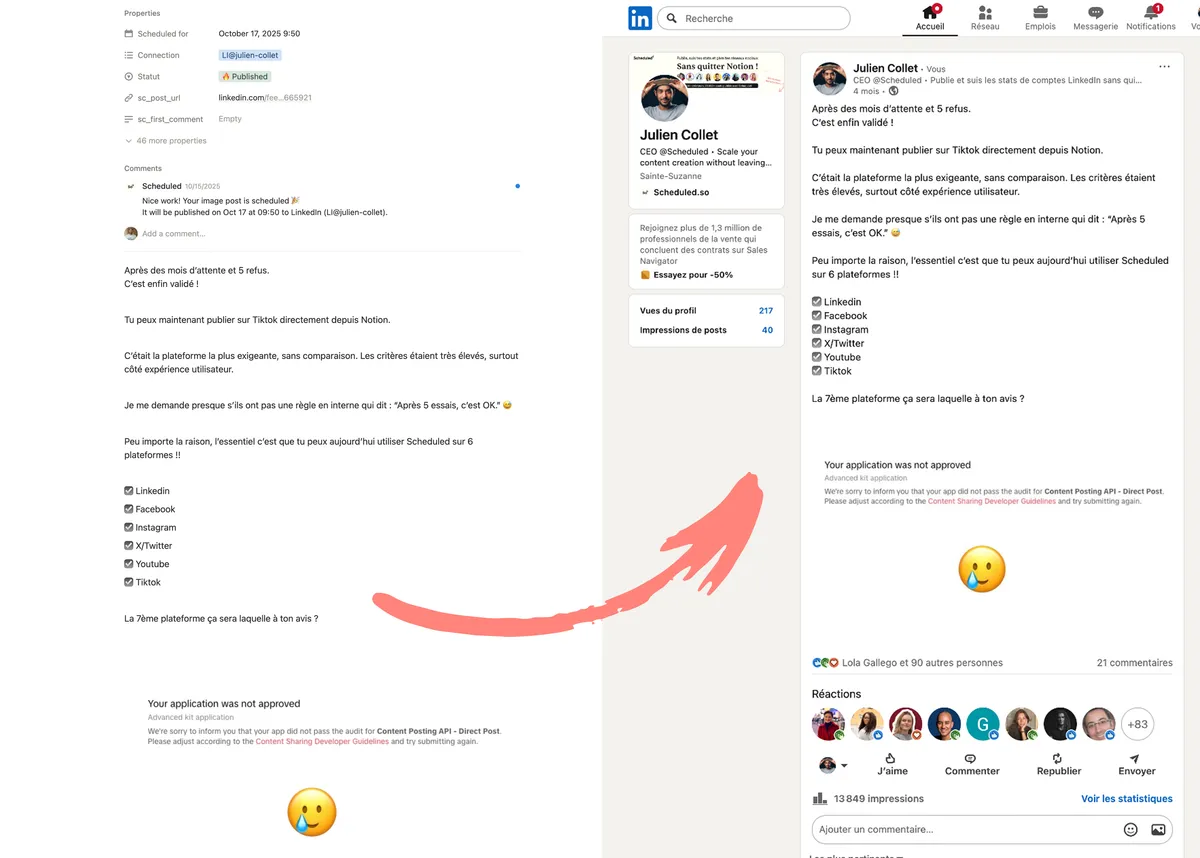
From Notion to LinkedIn: scheduled, then automatically published
Bonus: Free Notion Template for Your Editorial Calendar
To help you get started, we've created a free Notion template that includes everything you need to manage your social media:
- Main database with properties: content, platform, date, status, content type (text, image, video, carousel)
- Calendar view to visualize your schedule
- Kanban view by status (Idea → Draft → In Review → Scheduled → Published)
- Platform view to filter by social network
- Ideas database so you never run out of inspiration
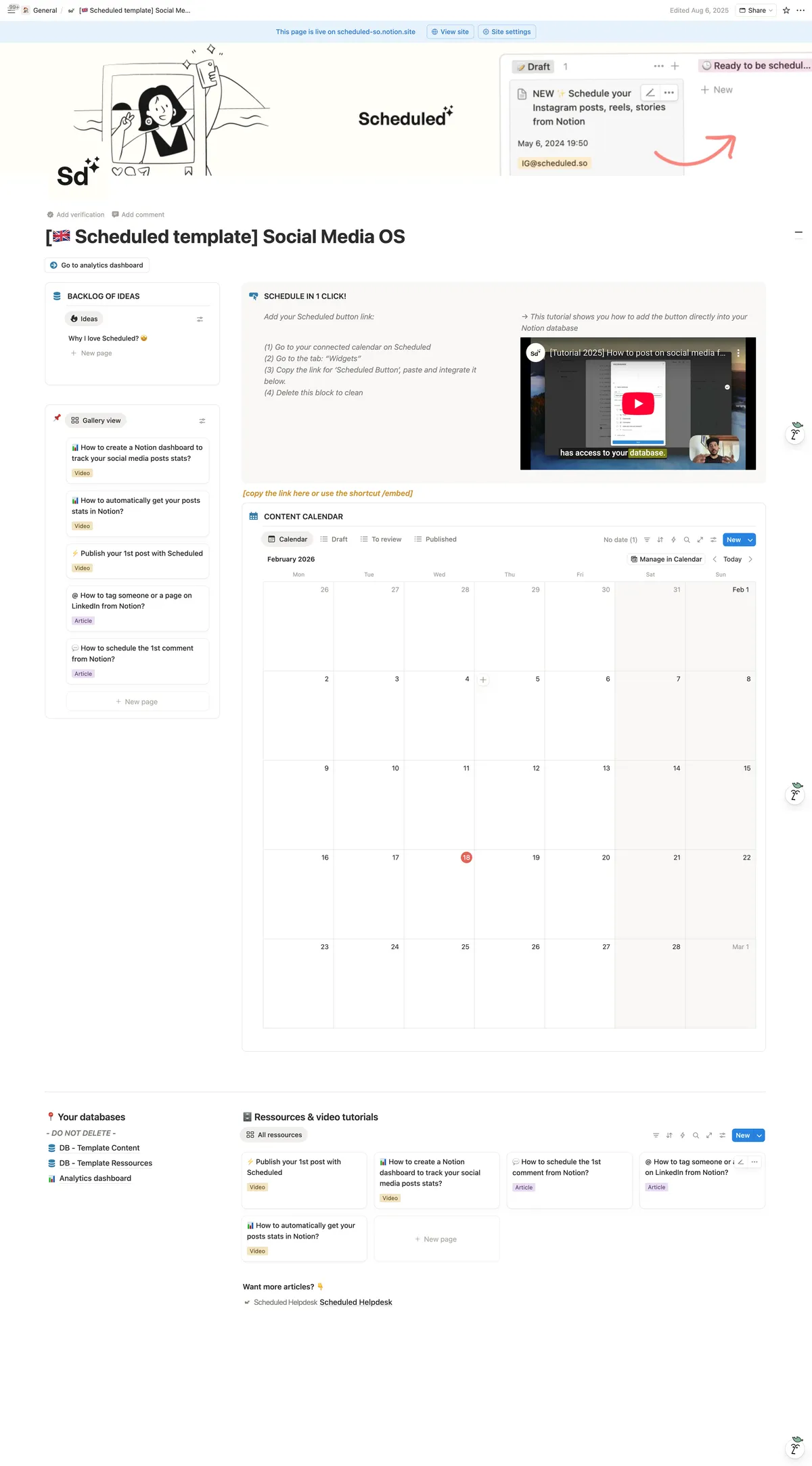
The Scheduled Social Media OS template in Notion
FAQ
Is posting via a third-party tool risky for my LinkedIn account?
No. Tools like Scheduled use LinkedIn's official APIs (and those of other platforms). These are the same APIs used by Buffer, Hootsuite, and other established tools. Your account is not at risk.
Can I post LinkedIn carousels from Notion?
Yes, with Scheduled you can publish PDF carousels on LinkedIn directly from Notion. Simply add your PDF file as an attachment in the Notion page.
Is bold formatting preserved on LinkedIn?
With Scheduled, yes. Bold text in Notion stays bold on LinkedIn. Hashtags written in Notion also become clickable hashtags on LinkedIn. This is one of Scheduled's unique advantages over competitors.
How many posts can I schedule per month?
Scheduled offers a 14-day free trial to test all features. Paid plans starting at €9/month offer unlimited posts. With NotionScheduler, the free plan is limited to 10 posts/month.
Does it work with LinkedIn company pages?
Yes. Scheduled supports both personal profiles and LinkedIn company pages. This is particularly useful for community managers and agencies managing multiple accounts.
Conclusion: Which Method Should You Choose?
The choice depends on your situation:
- You're just starting out and rarely publish → The manual method is enough to begin, but you'll quickly hit its limits.
- You're technical and have specific needs → Make/Zapier gives you total flexibility, at the cost of complex setup.
- You want a simple, complete solution that works → A dedicated tool like Scheduled is the best investment. In 5 minutes of setup, you save hours every week.
If LinkedIn is your primary platform — which it is for most professionals and creators — Scheduled is clearly the best fit thanks to its unique LinkedIn features (mentions, formatting, analytics).
This article was last updated in February 2026. Pricing and features mentioned are subject to change.