LinkedIn Content Planner - Free Notion Template
Plan and schedule your LinkedIn posts from a single Notion database. Includes calendar view, status tracking, content pillars, and character count. Duplicate and start posting.
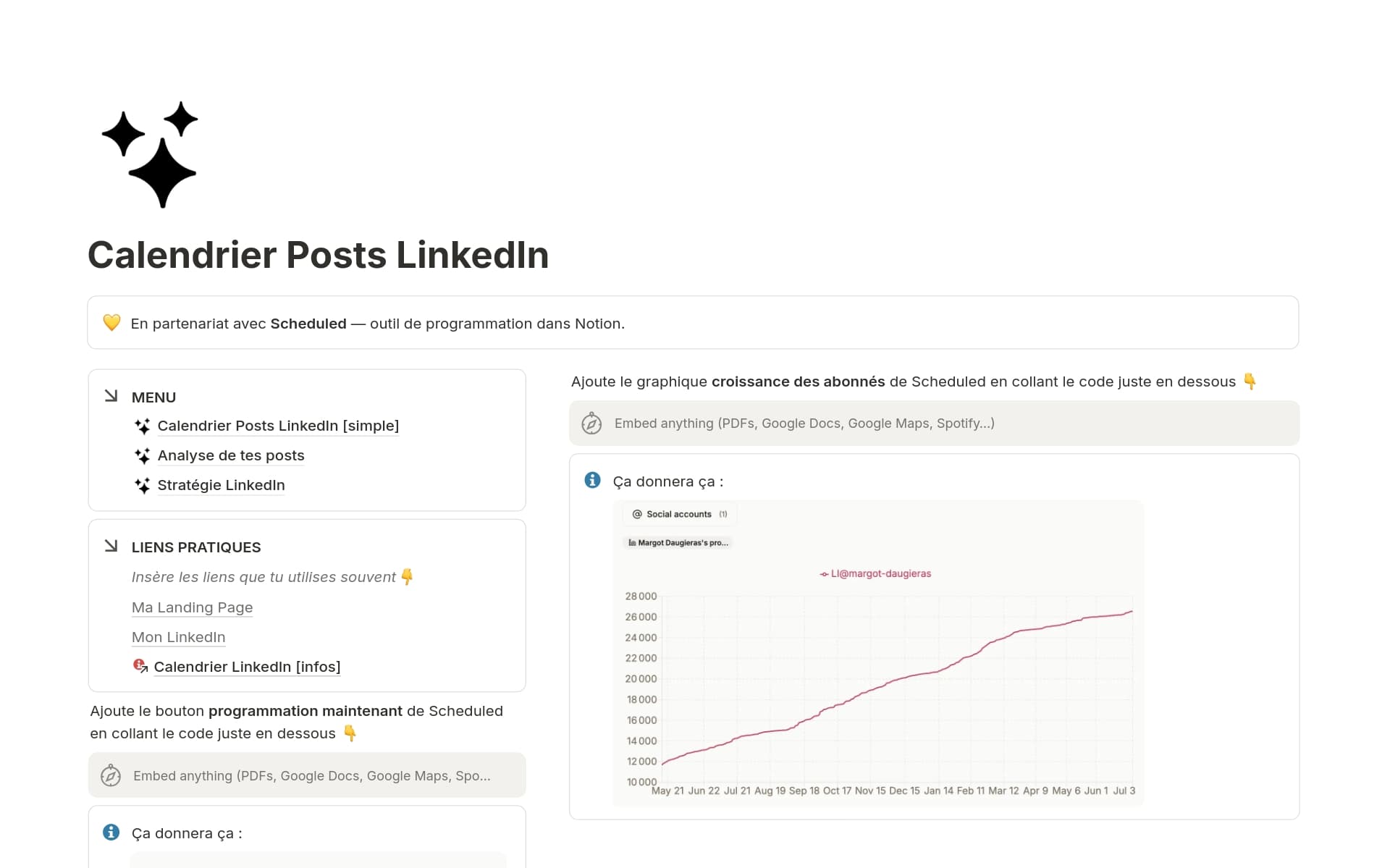
What's inside
- Calendar view for scheduling at a glance
- Board view with status columns (Draft, Scheduled, Published)
- Content pillar tags to organize by topic
- Character count property (3,000 limit)
- Publish date property for auto-scheduling
- Account selector for personal + company pages
- 2-3 example posts pre-filled
How to plan your LinkedIn content in Notion
The 4-week content system
The most consistent LinkedIn creators don't post spontaneously. They batch. Here's a system that works: Week 1 is for ideation - capture ideas from conversations, articles, and comments in your Notion database. Week 2 is for drafting - write your posts using bold and italic formatting directly in Notion. Week 3 is for scheduling - set publish dates and connect to Scheduled for automatic publishing. Week 4 is for analysis - review engagement stats synced back to your Notion database.
Scheduled users who batch content weekly publish 3x more consistently than those who post ad hoc. Consistency is the single biggest factor in LinkedIn growth, and this template makes it effortless.
Organizing content by pillar
Random posting leads to a scattered profile. Content pillars bring focus. Use the "Content Pillar" select property in this template to categorize every post. Example pillars for a LinkedIn creator: personal stories (builds trust), industry insights (builds authority), how-to posts (builds utility), and engagement posts (builds reach).
A healthy content mix is roughly 40% value posts, 30% personal stories, 20% engagement hooks, and 10% promotional. The template's board view lets you visually check your balance across pillars before scheduling.
From draft to published in one click
Once your template is connected to Scheduled, publishing is seamless. Write your post in the Notion page body, set the publish date property, and change the status to "Scheduled". Scheduled reads your database, formats the text (bold and italic preserved), and publishes at the exact time you set. No copy-pasting. No switching apps.
How to use with Scheduled
Duplicate this template
Click the button above to duplicate the template into your Notion workspace. It's free and takes 10 seconds.
Connect to Scheduled
Sign up for Scheduled (free 14-day trial), connect your Notion workspace, and select this database.
Write and publish
Write posts in Notion, set a publish date, and Scheduled handles the rest. Bold formatting preserved.
Frequently Asked Questions
Yes, completely free. Duplicate it into your Notion workspace and start using it immediately. No signup required for the template itself.
Yes, by connecting it to Scheduled. Write your post in Notion, set a publish date, and Scheduled publishes it automatically to LinkedIn. 14-day free trial, no credit card required.
Status (Draft, Scheduled, Published), publish date, platform, content pillar, character count, and account selector. You can customize any property to fit your workflow.
Yes. The account property lets you select between personal profiles and company pages. Scheduled supports publishing to both.
More free Notion templates
Discover more templates to organize your content and publish from Notion.
Connect this template to Scheduled and publish automatically
Write in Notion, schedule a date, and Scheduled publishes to LinkedIn with formatting preserved.
Try Scheduled free for 14 days